If you're searching for how to IPTV app setup instructions, you're probably wondering which app you need and how to start watching. The process is easier to understand once you know the difference between an IPTV player and a streaming subscription.
An IPTV app allows you to access television streams through an internet connection. Depending on the app and your authorized content provider, you may be able to watch live channels, browse on-demand programs, or organize your favorite content.
This IPTVUSAX guide explains what IPTV apps do, how they work, and how to configure one on popular devices in the United States.
You'll also learn about playlist formats, device compatibility, common installation problems, and ways to improve your viewing experience. What Is an IPTV App and How Does It Work? An IPTV app is software designed to play television content delivered through Internet Protocol networks.
Unlike traditional cable television, IPTV delivers video data through a network connection rather than a conventional cable television signal.
However, not every IPTV app provides content automatically.
Some apps include their own licensed streaming services. Others are independent media players that require a compatible playlist or authorized subscription. IPTV Player vs. IPTV Subscription Understanding this distinction can save you time during installation. Feature IPTV Player IPTV Subscription Main purpose Plays compatible media streams Provides access to content Includes channels Not necessarily Depends on the provider Installation Through a compatible app store or official source Usually involves account activation Login requirements Vary by application Usually provider-specific Device compatibility Depends on the player Depends on the service and supported formats
For example, installing a standalone IPTV player doesn't automatically give you access to television channels.
You generally need authorized streaming credentials or a compatible playlist.
Before choosing a service, explore the IPTVUSAX official website to understand the available options. How to IPTV App Setup Works: 5 Simple Steps Although different devices have different menus, most IPTV player installations follow a similar process. Step 1: Choose a Compatible IPTV App Start by identifying the device you want to use.
Common IPTV-compatible devices include:
- Samsung and LG Smart TVs
- Android TV and Google TV devices
- Amazon Fire TV devices
- Android smartphones and tablets
- iPhones and iPads
- Windows computers and Macs
Check whether your preferred player supports your operating system.
Also verify that the app accepts the connection format supplied by your authorized streaming provider. Step 2: Install the IPTV Player Open the official application store available on your device.
Search for the exact name of your chosen IPTV player and check its publisher before installing.
For example, Android users can search through Google Play, while Apple users can check the App Store.
Some television platforms have their own application stores.
Avoid downloading unknown installation files from unofficial websites. Unverified apps may contain unwanted software or create security risks. Step 3: Open the Application After installation, launch your IPTV player.
You may see options such as:
- Add Playlist
- Login with Xtream Codes
- Load M3U URL
- Add User
- Import Playlist
The available options depend on the application.
Some players require a separate activation or license fee. This fee may not include any streaming content. Step 4: Enter Your Authorized Streaming Details If your player supports external playlists, your provider may supply an M3U URL or compatible login credentials.
Enter the information exactly as provided.
Pay attention to capitalization, punctuation, and spaces.
Avoid sharing your login credentials publicly or entering them into unfamiliar websites. Step 5: Load and Test Your Content Once the application accepts your configuration, it may begin loading the available content.
The time required depends on the application, playlist size, device performance, and network conditions.
Test a stream you are authorized to access.
If it plays correctly, your initial setup is complete.
Understanding IPTV App Login Formats One of the most confusing parts of IPTV setup is choosing the correct login method.
Different applications support different connection formats. What Is an M3U Playlist? An M3U playlist is a file or URL containing references to media streams.
Compatible IPTV players can read these references and display them in an organized list.
An M3U playlist may include channel names, stream addresses, and related metadata.
However, an M3U file does not guarantee that the streams are available, authorized, or compatible with your device. What Are Xtream Codes? Some IPTV players support an account-based connection method commonly called Xtream Codes login.
This typically requires three pieces of information:
- Server URL
- Username
- Password
The player uses these details to request available content from the configured service.
Only enter credentials supplied by a provider you trust. What Is an EPG? EPG stands for Electronic Program Guide.
An EPG can display television schedules, program titles, and broadcast information.
When supported, it helps you see what's currently playing and what's scheduled next.
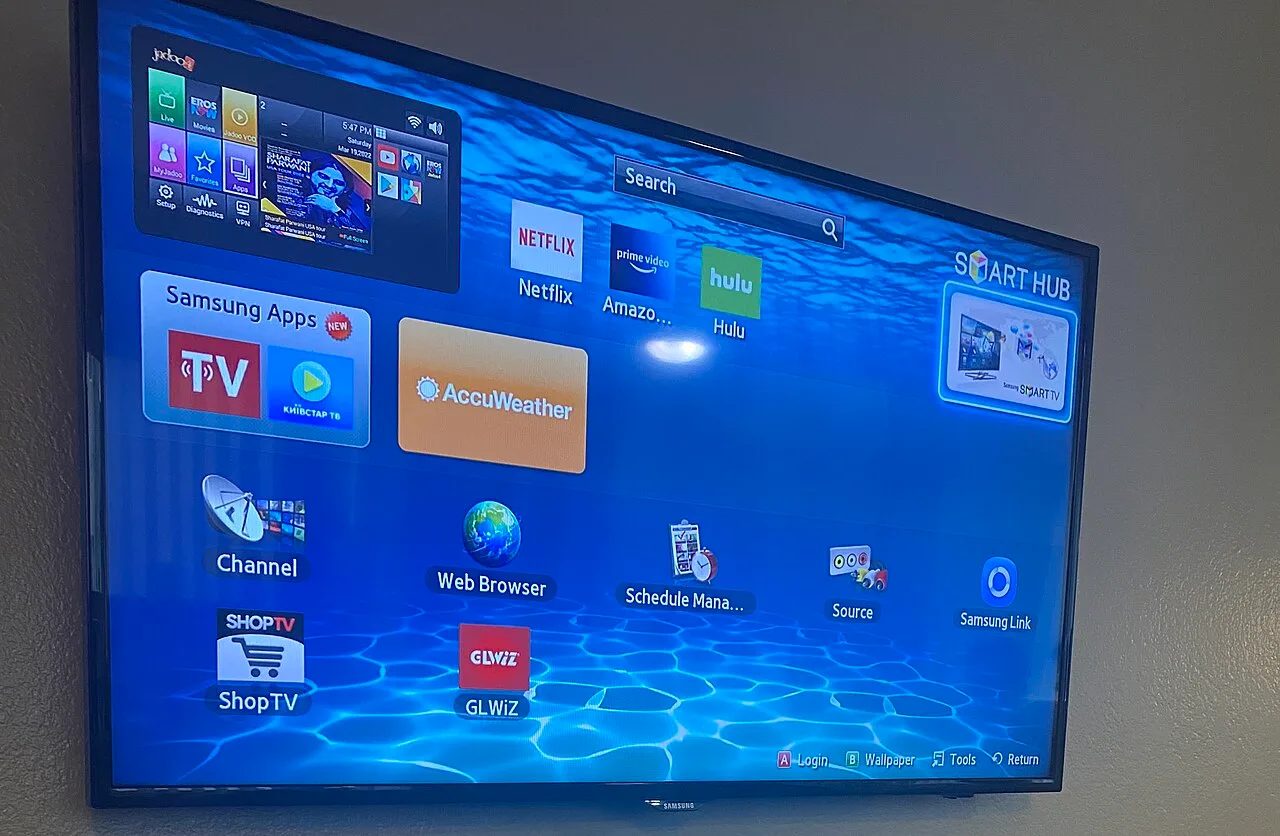
EPG availability and accuracy depend on the data source, player, and streaming service. How to Install IPTV Apps on Different Devices The basic process is similar across devices, but each operating system has its own installation requirements. IPTV App on Samsung Smart TV Samsung Smart TVs use Samsung's television operating system.
To install a compatible IPTV player:
- Open the Apps section on your television.
- Search for an IPTV player available for your TV model.
- Review the app details and install it.
- Open the application.
- Follow its instructions to add your authorized playlist or account.
App availability can vary by television model, software version, and region. IPTV App on LG Smart TV LG Smart TVs generally use webOS.
Open the LG app store and search for a compatible IPTV player.
Install the application, then follow its configuration instructions.
Some players may use a device identifier or a web-based playlist management system.
Always follow the official documentation for the specific application. IPTV App on Amazon Fire TV Fire TV devices support streaming applications designed for Amazon's platform.
Start by checking the Amazon Appstore for your chosen IPTV player.
Install the application if it is available and compatible.
Open the player and enter your authorized streaming information.
Avoid changing security settings or installing applications from unknown sources unnecessarily. IPTV App on Android TV and Google TV Android TV and Google TV devices can use compatible applications available through Google Play.
Open the Play Store, search for your chosen player, and select Install.
Once installed, configure the app using your supported login format.
For additional device-specific instructions, visit the IPTVUSAX setup guide for TV, mobile, and PC. IPTV App on iPhone and iPad On iOS or iPadOS, open the Apple App Store and search for an IPTV-compatible player.
Check its supported features before installing.
Some applications support M3U playlists, while others provide account-based access or local media playback.
Apple's official App Store support documentation explains how to find and download apps safely. IPTV App on Windows and Mac Desktop computers offer several ways to play compatible network streams.
Some media players can open supported network URLs or playlist files.
Other applications offer dedicated interfaces for organizing live television content.
Install software from its official publisher, check the supported formats, and follow the relevant setup instructions.
What Features Should a Good IPTV App Have? Not every IPTV application offers the same features.
Before installing a player, consider how you plan to watch television. Easy Navigation A clear interface makes it easier to find channels, browse categories, and manage playlists.
This is especially important when using a television remote. Favorites and Channel Organization A favorites feature lets you save frequently watched channels.
Some players also support categories, search functions, and customizable channel lists. Electronic Program Guide An EPG can help you explore upcoming programs without switching between channels.
Check whether the player supports the guide format used by your content provider. Video Format Compatibility Different streams use different video and audio formats.
A player must support the relevant codecs and streaming protocols to play content correctly.
Some applications offer an external player option for additional compatibility. Parental Controls Parental controls can help restrict access to selected content.
If children use the device, look for an app with appropriate access restrictions.
Remember that parental control features vary between applications. Why Is My IPTV App Not Working? Even a correctly installed player can experience problems.
Fortunately, many common issues have straightforward explanations. The Playlist Won't Load Check your internet connection first.
Then verify that the playlist URL or account credentials are correct.
A playlist may also fail because the server is unavailable, the account is inactive, or the format is unsupported.
Contact your authorized provider if the issue continues. The Video Keeps Buffering Buffering can happen when your device isn't receiving video data quickly or consistently enough.
Possible causes include network congestion, unstable Wi-Fi, device limitations, or problems with the streaming source.
Try these troubleshooting steps:
- Restart your router and streaming device.
- Move closer to your Wi-Fi router.
- Use Ethernet if your device supports it.
- Close unnecessary background applications.
- Test another authorized stream.
- Check whether the problem occurs on multiple devices.
A faster internet plan alone won't resolve every buffering issue.
Connection stability and stream availability also matter. The App Shows a Black Screen A black screen may indicate an unsupported video format, playback error, or unavailable stream.
Try another compatible player setting or restart the application.
If the issue affects only one stream, the problem may be with that source rather than your device. The App Crashes Update the player to its latest compatible version.
Check whether your device has sufficient available storage and memory.
If necessary, reinstall the application after saving any configuration details you may need. Are IPTV Apps Legal in the United States? IPTV technology itself is legal.
Many legitimate streaming services use internet-based video delivery.
However, the legality of accessing particular content depends on licensing, distribution rights, and how the service operates.
Installing an IPTV player does not automatically make every playlist or streaming source lawful.
Before using a service, check whether it has permission to distribute the content you're accessing.
Be cautious of providers that cannot explain their content rights or advertise unauthorized access to premium channels. How to Choose an IPTV App for Your Needs The best application depends on your device and viewing preferences.
A Smart TV user may prioritize remote-friendly navigation.
A smartphone user may prefer a simple interface and convenient playlist management.
A desktop user might value broad media format compatibility.
Before choosing an app, ask yourself:
- Does it support my device?
- Does it accept my authorized playlist format?
- Is the interface easy to use?
- Does it support EPG information?
- Are updates and support available?
- Does it require a separate activation payment?
It's also worth comparing the features and terms of any streaming service before subscribing.
You can review the IPTVUSAX subscription options to explore the available plans and determine which option suits your needs. Tips for a Better IPTV App Experience A few simple habits can make IPTV applications easier to manage.
Keep your software updated. Application updates may include bug fixes, security improvements, and compatibility changes.
Use a stable connection. Reliable Wi-Fi or Ethernet can reduce network-related interruptions.
Protect your credentials. Treat IPTV account details like other private login information.
Avoid suspicious downloads. Use official app stores and trusted software publishers whenever possible.
Organize your channels. Favorites and categories can make large playlists easier to navigate.
Check device compatibility. Not every app or video format works on every television or smartphone.
Use authorized content sources. A reputable, properly licensed service is an important part of a reliable viewing experience. Final Thoughts: Getting Started With an IPTV App Learning how to IPTV app setup works doesn't require advanced technical knowledge.
The key is choosing a compatible player, understanding your login format, and using an authorized streaming source.
Whether you're watching on a Smart TV, Fire TV, smartphone, or computer, the basic configuration process remains similar.
Ready to explore your options? Visit IPTVUSAX to learn about the service, compare available subscription options, and find setup guidance for your device.