If you want to learn how to use iptv smarters pro on tv, this step-by-step guide will walk you through the full process. You’ll learn how to install the app, complete the IPTV Smarters Pro login on TV, add your playlist, load the TV guide, and solve common beginner errors.
IPTV Smarters Pro is a popular IPTV player app. It does not include channels by itself. You need a valid IPTV subscription or playlist from a provider, then the app helps you watch that content on your Smart TV or streaming device.
This guide is written for beginners using Samsung TV, LG TV, Android TV, Google TV, Firestick, or similar devices. For subscription options, you can start with IPTVUSAX plans and IPTV subscription options.
What You Need Before You Start
Before you install IPTV Smarters Pro on TV, make sure you have the basics ready. This prevents most setup problems.
You need:
- A Smart TV or TV streaming device
- A stable internet connection
- IPTV Smarters Pro installed from an official app store where available
- Your IPTV login details from your provider
- A remote control, keyboard, or phone app for easier typing
Your provider may give you login details in one of two formats:
| Login method | What you need | Best for |
|---|---|---|
| Xtream Codes API | Server URL, username, password | Most beginners |
| M3U playlist | Playlist URL | Users with playlist links |
If you use IPTVUsax, keep your subscription email handy. You may need the server URL, username, password, or playlist link during setup. You can also visit the IPTVUSAX official homepage to find your IPTV plan in the USA.
How to Use IPTV Smarters Pro on TV: Quick Overview
Here is the basic process for how to use iptv smarters pro on tv:
- Install IPTV Smarters Pro on your device.
- Open the app and accept the terms if shown.
- Choose your login method.
- Enter your IPTV provider details.
- Wait for live TV, movies, series, and EPG to load.
- Test channels and adjust settings if needed.
The exact buttons may look different by device. Still, the main flow is usually the same across Smart TVs and streaming devices.
For a broader device setup overview, you can also check the IPTVUSAX setup guide for TV, mobile, and PC.
Install IPTV Smarters Pro on TV Safely
The safest way to install IPTV Smarters Pro on TV is through the official app store on your device. Avoid random download links, modified apps, and unknown APK sites.
Third-party files can carry security risks or stop working without warning. For general safe app guidance, you can review the U.S. Federal Trade Commission’s advice on downloading apps safely.
IPTV Smarters Pro Samsung TV Setup
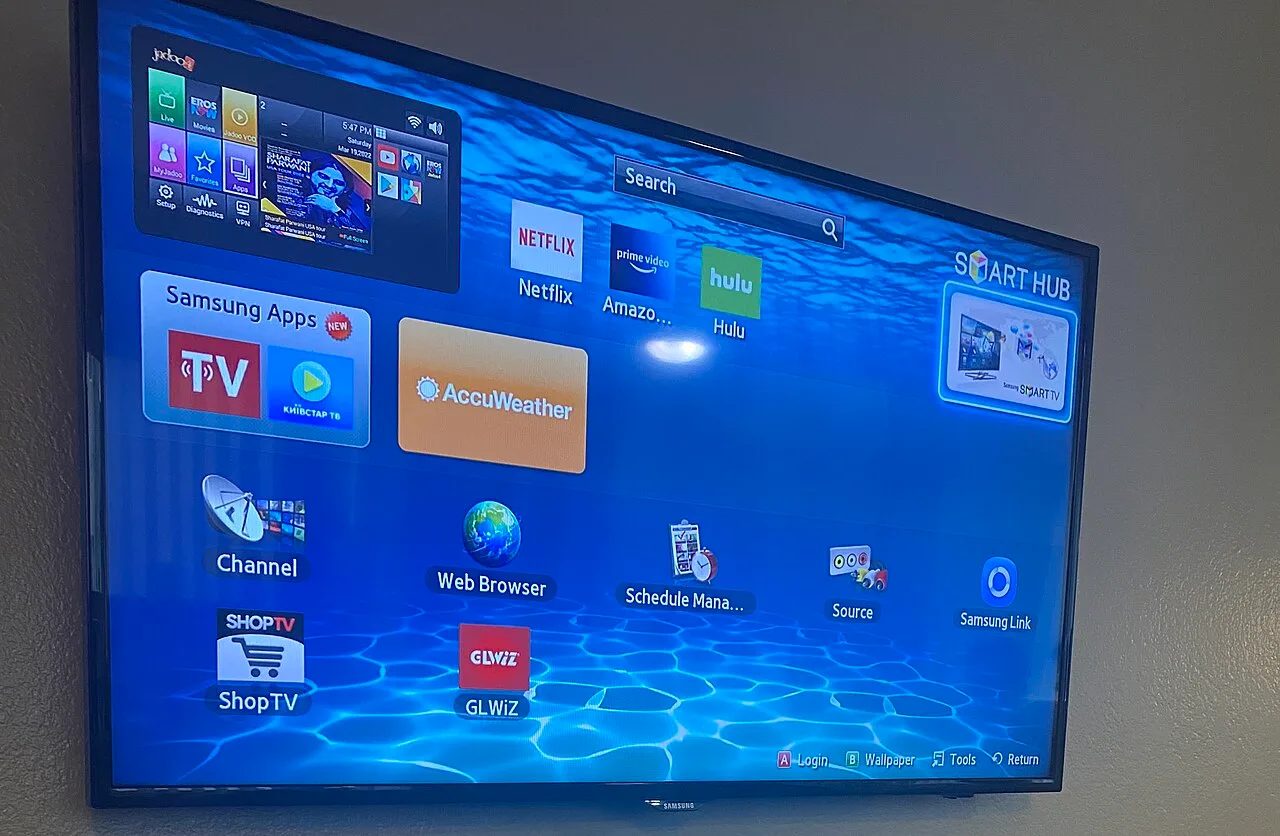
For iptv smarters pro samsung tv setup, start with the Samsung Smart Hub.
Follow these steps:
- Turn on your Samsung Smart TV.
- Press the Home button on your remote.
- Open Apps.
- Use Search and type “IPTV Smarters Pro”.
- Select the app if it appears.
- Choose Install.
- Open the app after installation.
If the app does not appear, it may not be available in your region or on your TV model. In that case, you can use an external device like Firestick, Android TV box, or Google TV.
IPTV Smarters Pro LG TV Setup
For iptv smarters pro lg tv setup, use the LG Content Store.
Steps:
- Turn on your LG Smart TV.
- Press the Home button.
- Open LG Content Store or Apps.
- Search for “IPTV Smarters Pro”.
- Select the app if available.
- Install and open it.
If you cannot find it, your LG webOS version or region may not support it. A streaming stick is often the easiest workaround.
Android TV and Google TV Setup
Android TV and Google TV devices often make installation simple.
Steps:
- Open Google Play Store on your TV.
- Search for IPTV Smarters Pro.
- Select the official app when available.
- Click Install.
- Open the app from your apps list.
If it is not available in your Play Store region, ask your IPTV provider for the safest supported installation option.
Firestick Setup
Firestick devices may not always show IPTV Smarters Pro directly in the Amazon Appstore, depending on availability. Use official sources whenever possible and be careful with unknown files.
A typical Firestick setup looks like this:
- Turn on your Firestick.
- Open Find or Search.
- Look for IPTV Smarters Pro.
- Install it if it is available.
- Open the app and continue to login.
If the app is unavailable, contact your provider for guidance. Do not install unofficial files unless you understand the risks.
IPTV Smarters Pro Login on TV
The iptv smarters pro login on tv step is where many beginners get stuck. The app may offer several login options, but most users should choose Xtream Codes API if their provider supports it.
Login With Xtream Codes API
This is usually the easiest method.
You will need:
- Any profile name, such as “IPTVUsax”
- Username
- Password
- Server URL or portal URL
Steps:
- Open IPTV Smarters Pro.
- Choose “Login with Xtream Codes API” or similar.
- Enter a profile name.
- Type your username exactly.
- Type your password exactly.
- Enter the server URL exactly as provided.
- Select Add User or Login.
- Wait for the app to load your content.
Be careful with capital letters, spaces, and symbols. One small typing error can cause login failure.
Login With M3U Playlist URL
Some providers give an M3U link instead.
Steps:
- Open the app.
- Choose “Load Your Playlist or File/URL”.
- Select M3U URL if asked.
- Enter a playlist name.
- Paste or type the full M3U link.
- Save and wait for the playlist to load.
Typing a long M3U link with a TV remote can be frustrating. If your TV allows it, use a phone keyboard app or copy-paste feature.
Common Login Mistakes
If your IPTV Smarters Pro login on TV fails, check these points first:
- The username and password are typed exactly right.
- The server URL includes http:// or https:// if required.
- There is no extra space at the end.
- Your subscription is active.
- Your internet connection is working.
- Your provider allows your device type.
If everything looks correct and login still fails, contact your provider. IPTVUsax users can reach the IPTVUSAX contact and customer support team.
Add Channels, Movies, Series, and EPG
After login, IPTV Smarters Pro usually downloads your content. Depending on your subscription, you may see Live TV, Movies, Series, Catch-up, and EPG.
EPG means Electronic Program Guide. It shows program names, times, and upcoming schedules when your provider supports it.
How to Load the TV Guide
To load the guide:
- Open IPTV Smarters Pro.
- Go to Live TV.
- Look for EPG, TV Guide, or Install EPG.
- Select it and wait for loading.
- Restart the app if the guide does not appear.
The first EPG load can take a few minutes. If it remains blank, the issue may be with the EPG source from your IPTV provider.
IPTV Smarters Pro Firestick TV Guide Tips
The iptv smarters pro firestick tv guide can be very useful, but it may feel slow on older devices.
Try these tips:
- Close background apps before opening IPTV Smarters Pro.
- Keep enough free storage on your Firestick.
- Restart the Firestick after setup.
- Clear the app cache if the guide freezes.
- Use a 5 GHz Wi-Fi network if available.
Best Settings for Beginners
Once you know how to use iptv smarters pro on tv, spend a few minutes adjusting the settings. Small changes can make the app easier to use.
Player Settings
IPTV Smarters Pro may offer different player options. If a channel buffers, freezes, or has no sound, try changing the player.
Common options include built-in player or external player support. Not every TV supports every player, so test what works best on your device.
Parental Controls
If children use the TV, check whether parental controls are available in your app version. You may be able to lock adult categories or restrict certain sections.
Use a PIN you can remember. Avoid simple numbers like 0000 or 1234.
Favorites
Favorites help you avoid scrolling through long channel lists.
To add favorites:
- Open Live TV.
- Highlight a channel.
- Press and hold OK or select options.
- Choose Add to Favorites.
- Open the Favorites section next time.
This is one of the easiest ways to make IPTV Smarters Pro feel more organized.
Device-Specific Tips for Smart TVs and Streaming Devices
The best setup depends on your device. Here are practical tips for common screens.
Samsung Smart TV Tips
For Samsung TVs, keep the TV software updated. App availability and performance can depend on your model, region, and software version.
If the app feels slow, restart the TV completely. Do not only turn it off with the remote; unplug it for a minute if needed.
LG Smart TV Tips
On LG TVs, make sure your webOS software is current. If IPTV Smarters Pro is not available, an Android TV box or Firestick can be a simple alternative.
For typing login details, use the LG remote app if supported. It can reduce mistakes.
Firestick Tips
Firestick users should watch storage space. Low storage can cause buffering, app crashes, and EPG problems.
Restart your Firestick often if you stream daily. Also, keep the device well ventilated because overheating can affect performance.
Android TV Box Tips
Android TV boxes vary a lot in quality. A reliable device with enough memory usually performs better with large playlists and EPG data.
Keep your system updated. Remove apps you do not use to improve stability.
Troubleshooting Common First-Time Errors
Even if you follow every step, you may hit a setup error. Here are the most common fixes.
“Invalid Details” or “Authorization Failed”
This usually means the login information is wrong or inactive.
Check:
- Username
- Password
- Server URL
- Subscription status
- Extra spaces before or after text
If you copied details from an email, make sure you did not include punctuation by mistake.
App Opens but Channels Do Not Load
This may be caused by internet issues, playlist problems, or a provider-side issue.
Try:
- Restart the app.
- Restart your TV or streaming device.
- Restart your router.
- Test another app, like YouTube, to confirm internet works.
- Contact support if only IPTV content fails.
Buffering During Live TV
Buffering can happen for many reasons. Your Wi-Fi signal, device power, network traffic, and provider source can all matter.
Try moving closer to your router or using Ethernet if possible. Also, test different channels to see if the issue affects one stream or all streams.
EPG Not Showing
If the EPG is blank, wait a few minutes and refresh it. Then restart the app.
If it still does not show, the provider may not include guide data for every channel. Some channels may have EPG while others stay blank.
App Crashes or Freezes
If the app crashes:
- Clear cache.
- Restart the device.
- Update the app.
- Update the TV or device software.
- Reinstall the app if needed.
On low-powered devices, large playlists can also slow the app down.
Safety and Legal Notes
IPTV Smarters Pro is a media player. It does not create or sell TV channels. What you can watch depends on the IPTV service or playlist you add.
Only use IPTV services that you are allowed to access in your location. Avoid suspicious offers, unknown download links, and apps that ask for unnecessary permissions.
Conclusion: Start Watching on Your TV
Now you know how to use iptv smarters pro on tv, from installation to login, EPG setup, and basic troubleshooting. The key is to use safe installation sources, enter your details carefully, and choose the right setup for your device.
Ready to set up your IPTV experience? Visit IPTVUSAX official to find your IPTV plan in the USA, compare IPTVUSAX subscription options, or get help through IPTVUSAX customer support.